How to Install Themes
Jailbroken users should follow the instructions in How to Download instead
Step 1. Download Icons
- From the order page, click “Download Icons”
- Once complete, the downloaded file will be found in the Downloads folder in the Files app
Step 2. Shortcuts App
- Open the Shortcuts app
-
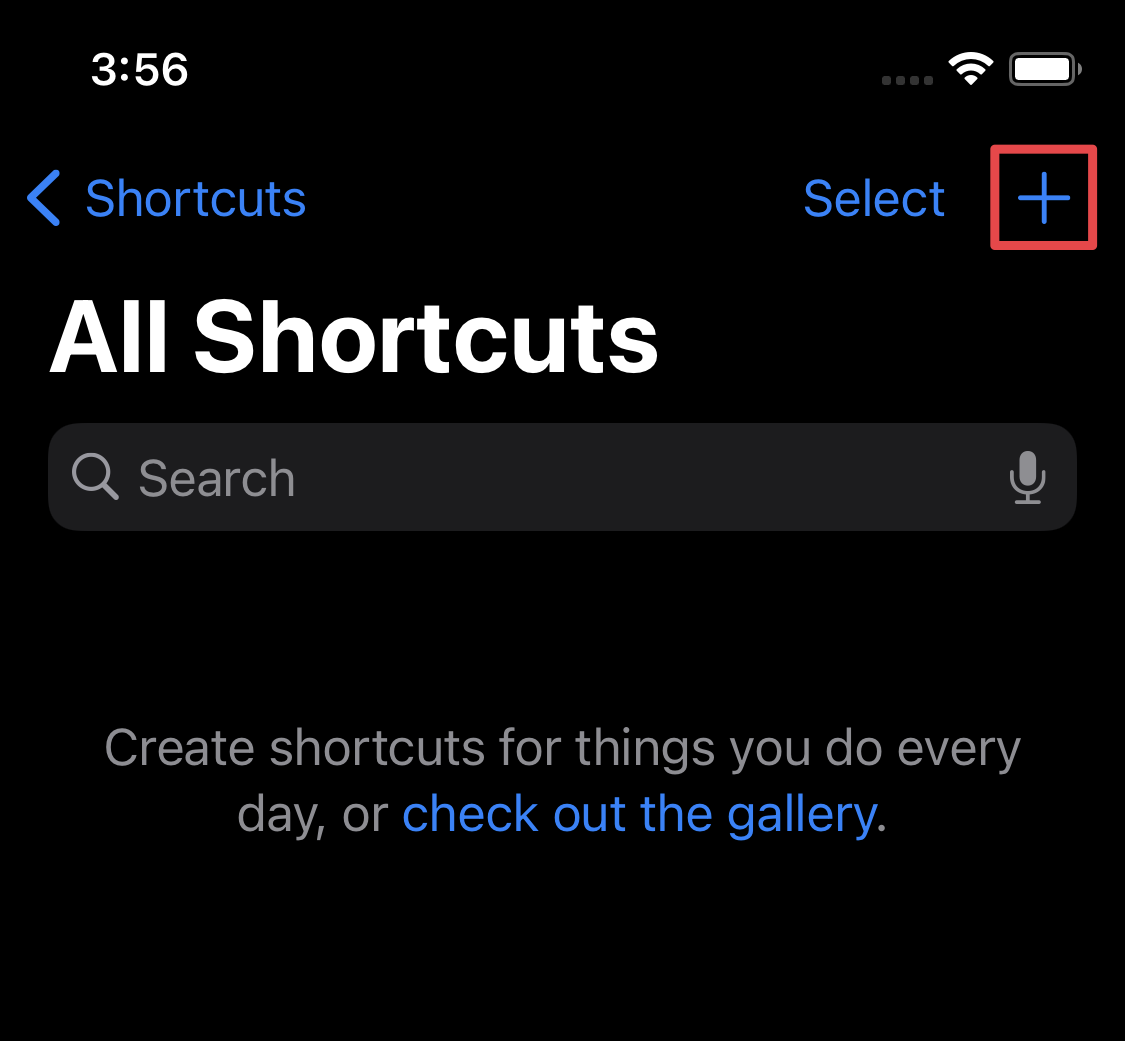
Create a new shortcut by tapping the “+” button in the top right
-
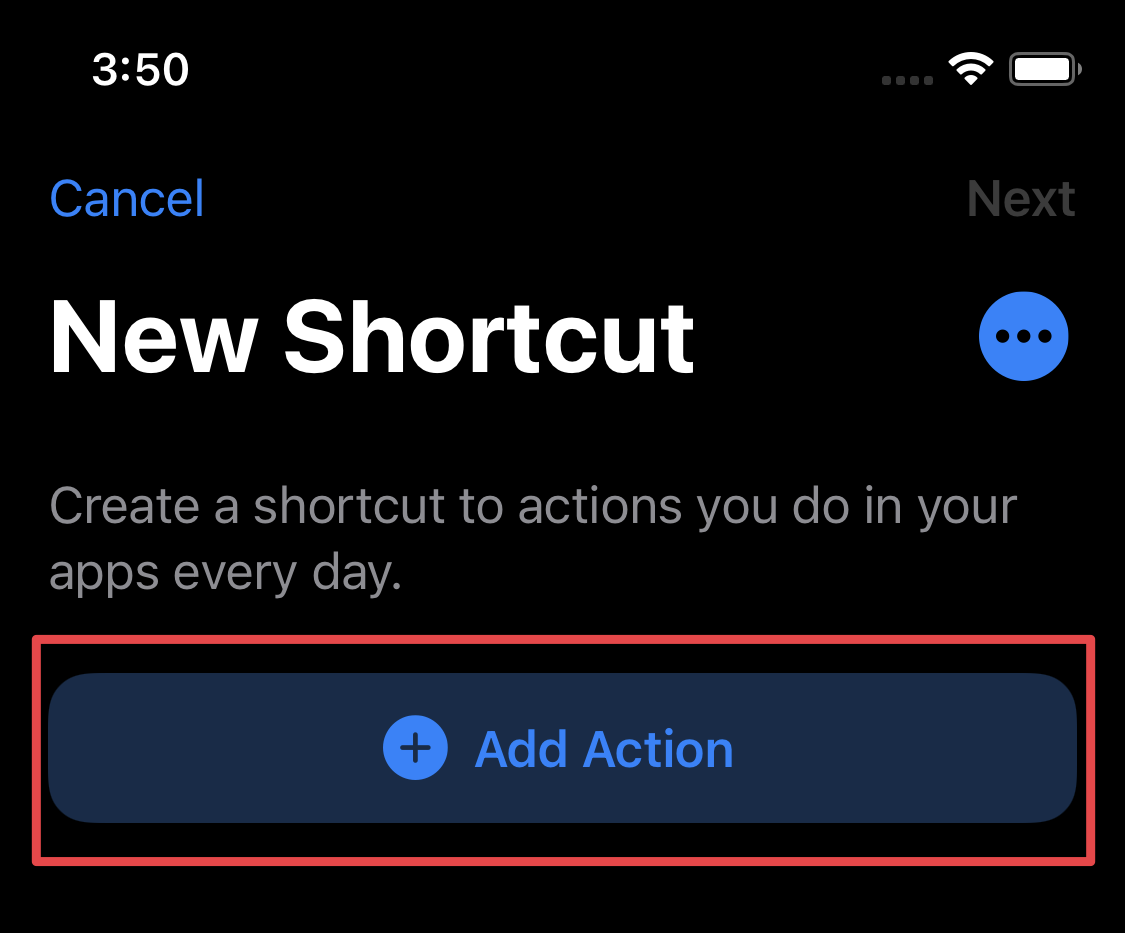
Then, click “Add Action”
-
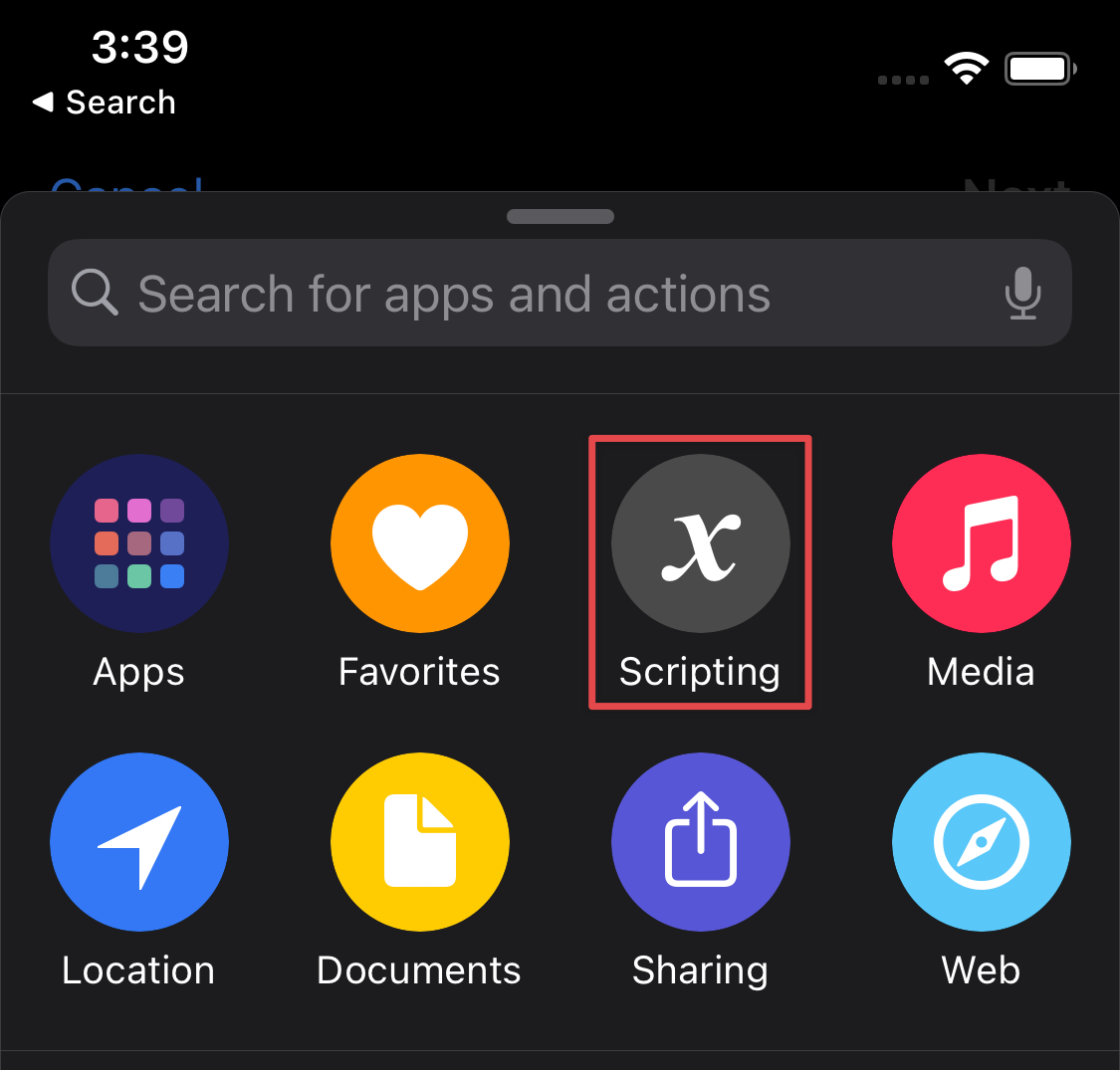
Click “Scripting”
-
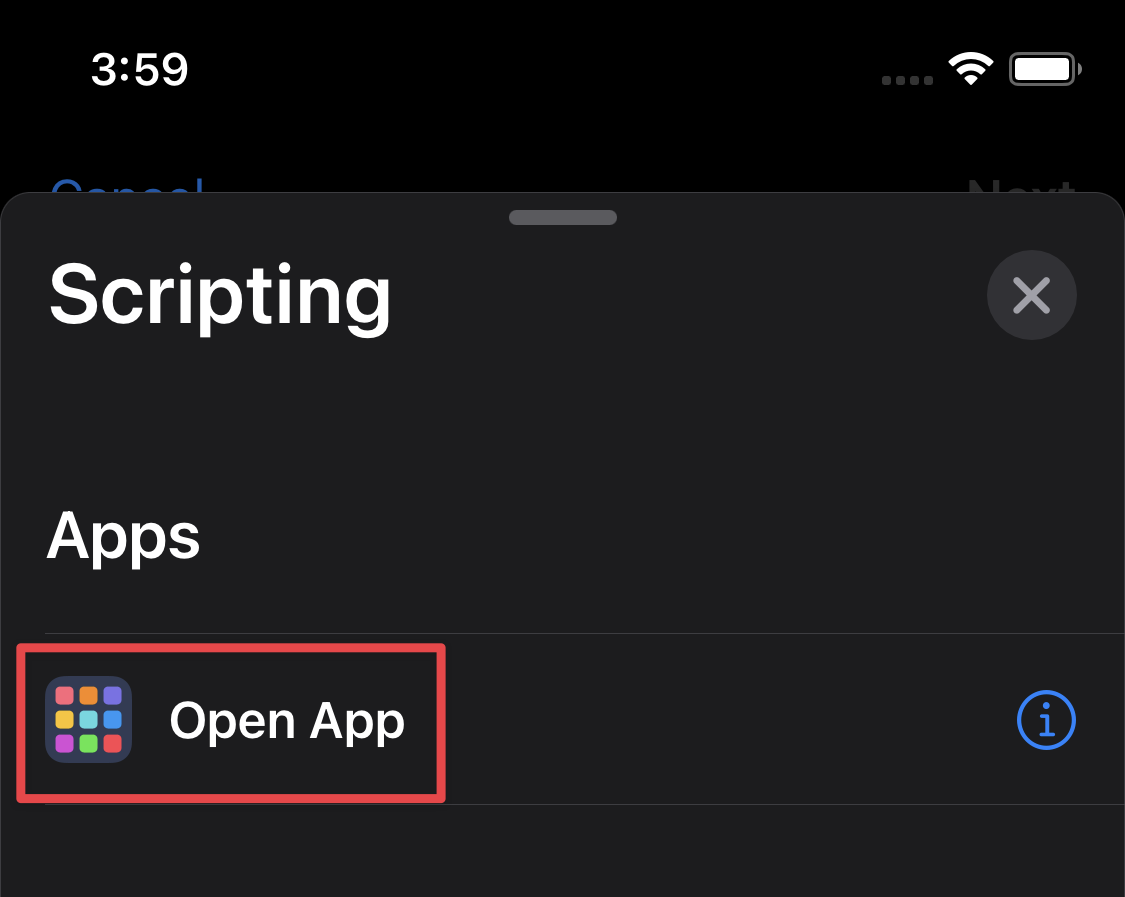
Then, click “Open App”
-
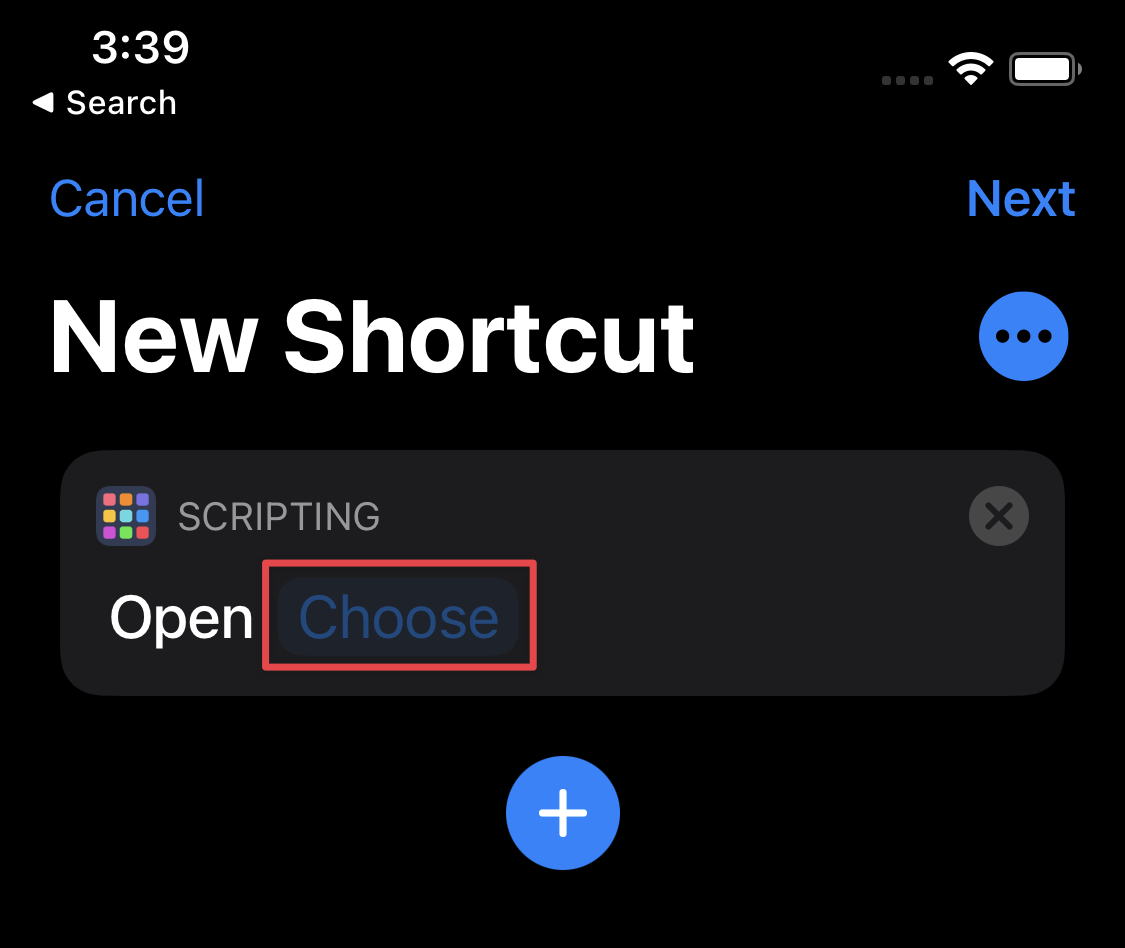
Click “Choose”, then select the app you’d like to theme
-
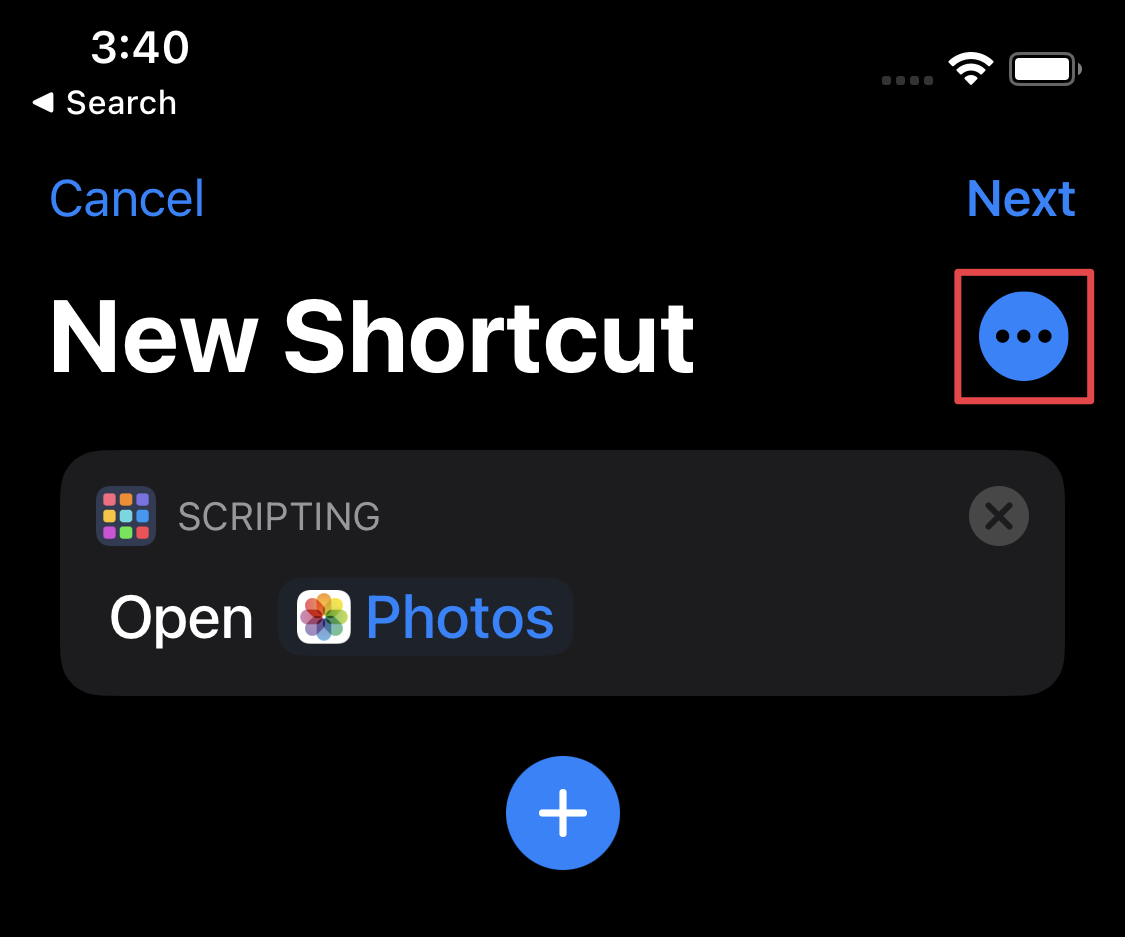
Click the three dots (“…”) in the top right
-
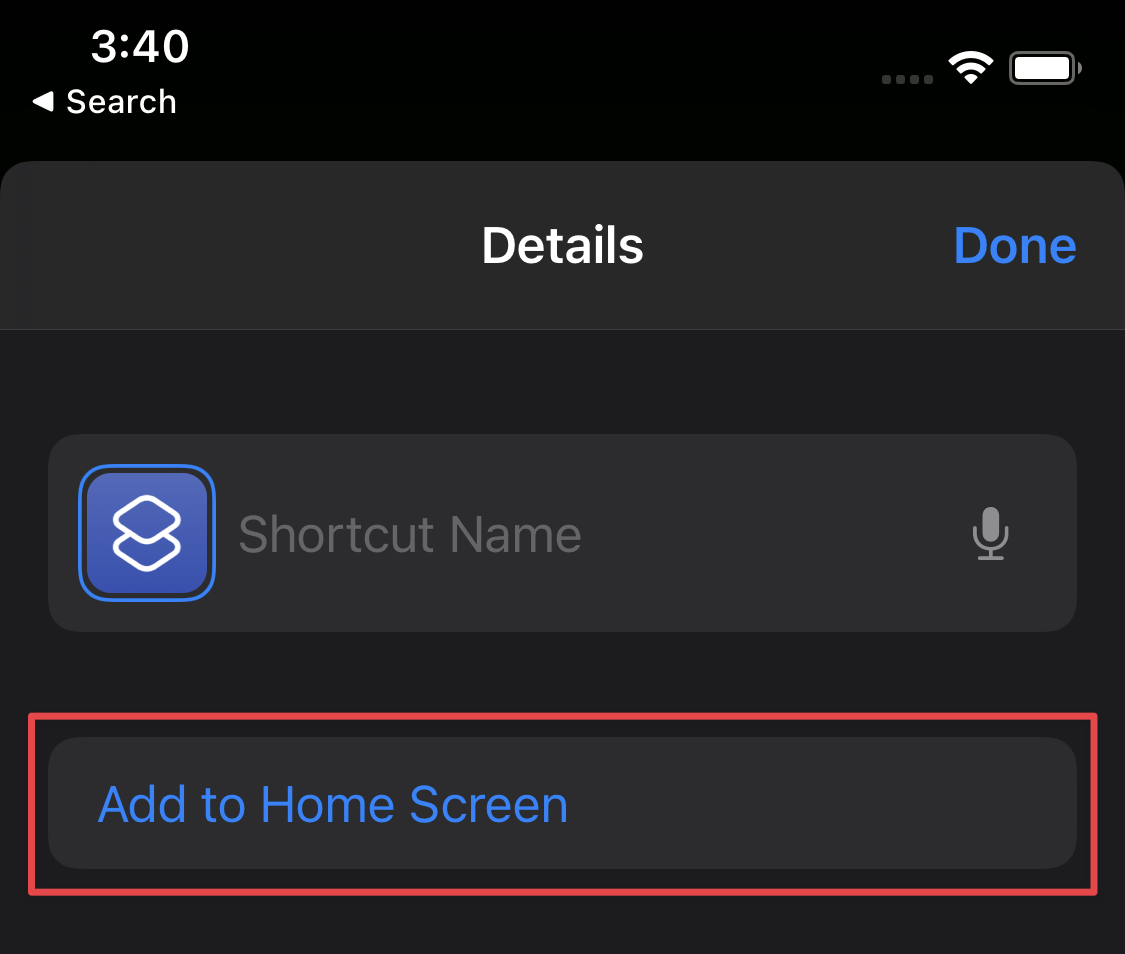
Click “Add to Home Screen”
-
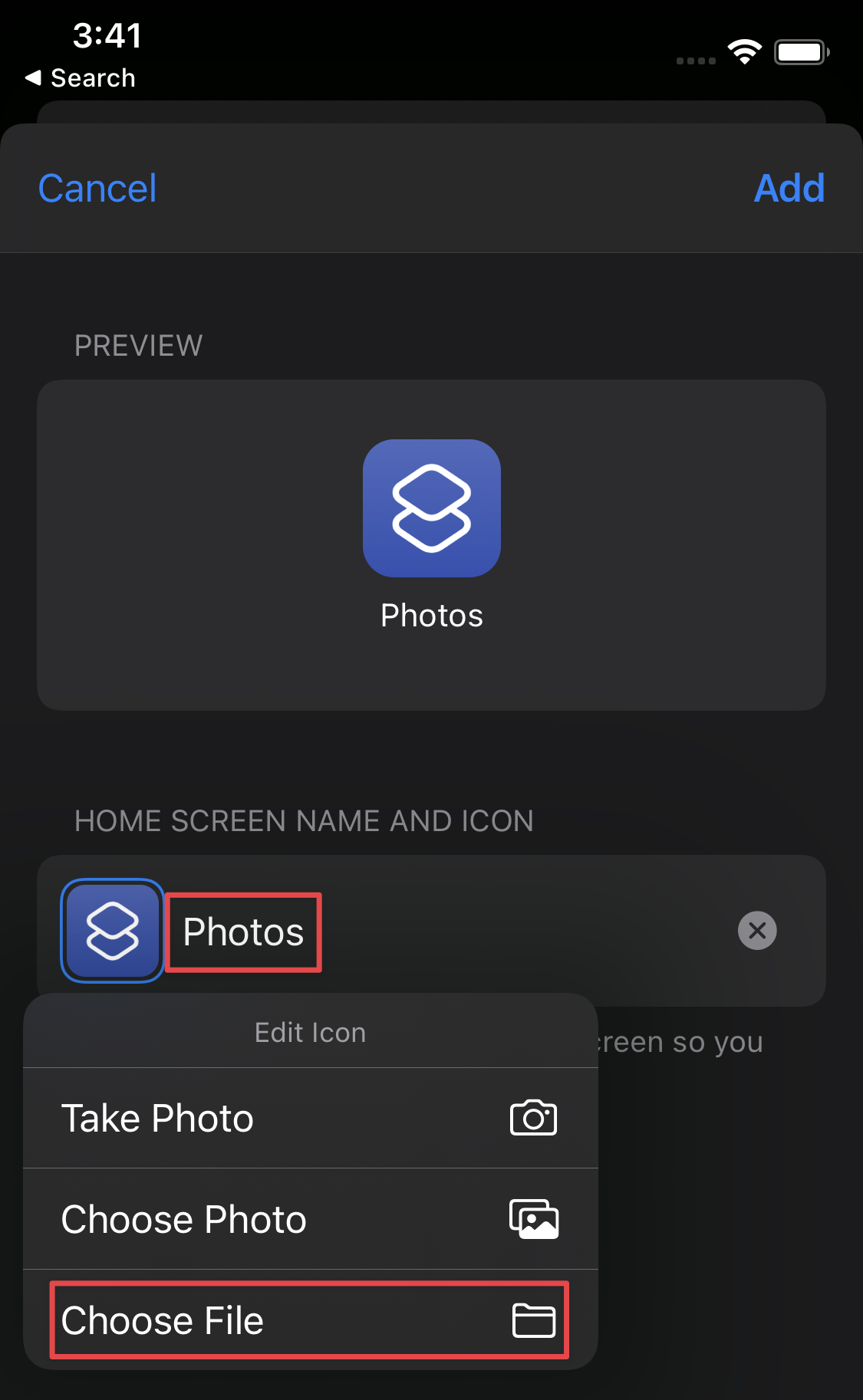
First, type in the apps name. Then tap the icon and click “Choose File”
-
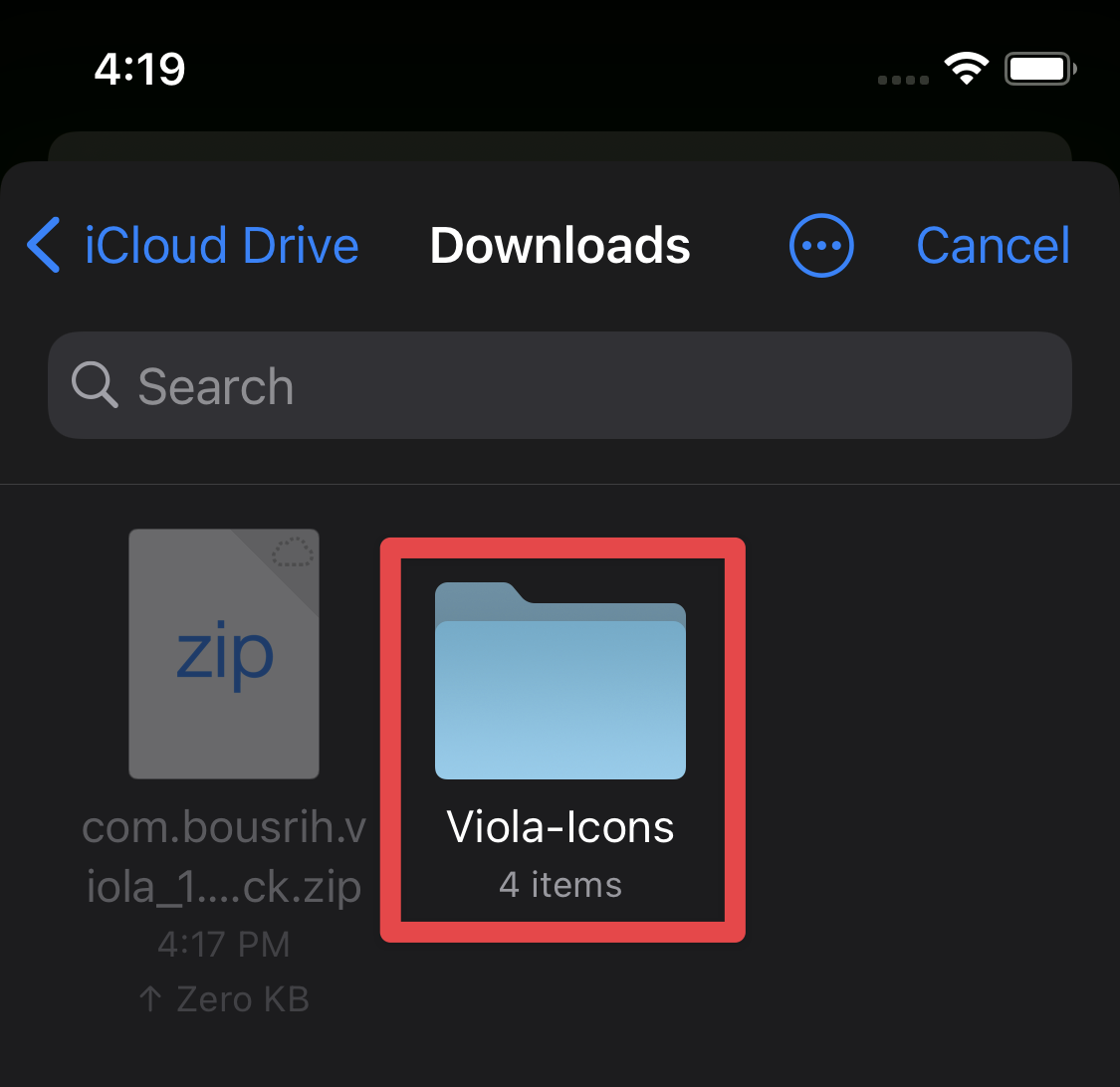
Find the files you downloaded in Step 1 in your Downloads folder
-
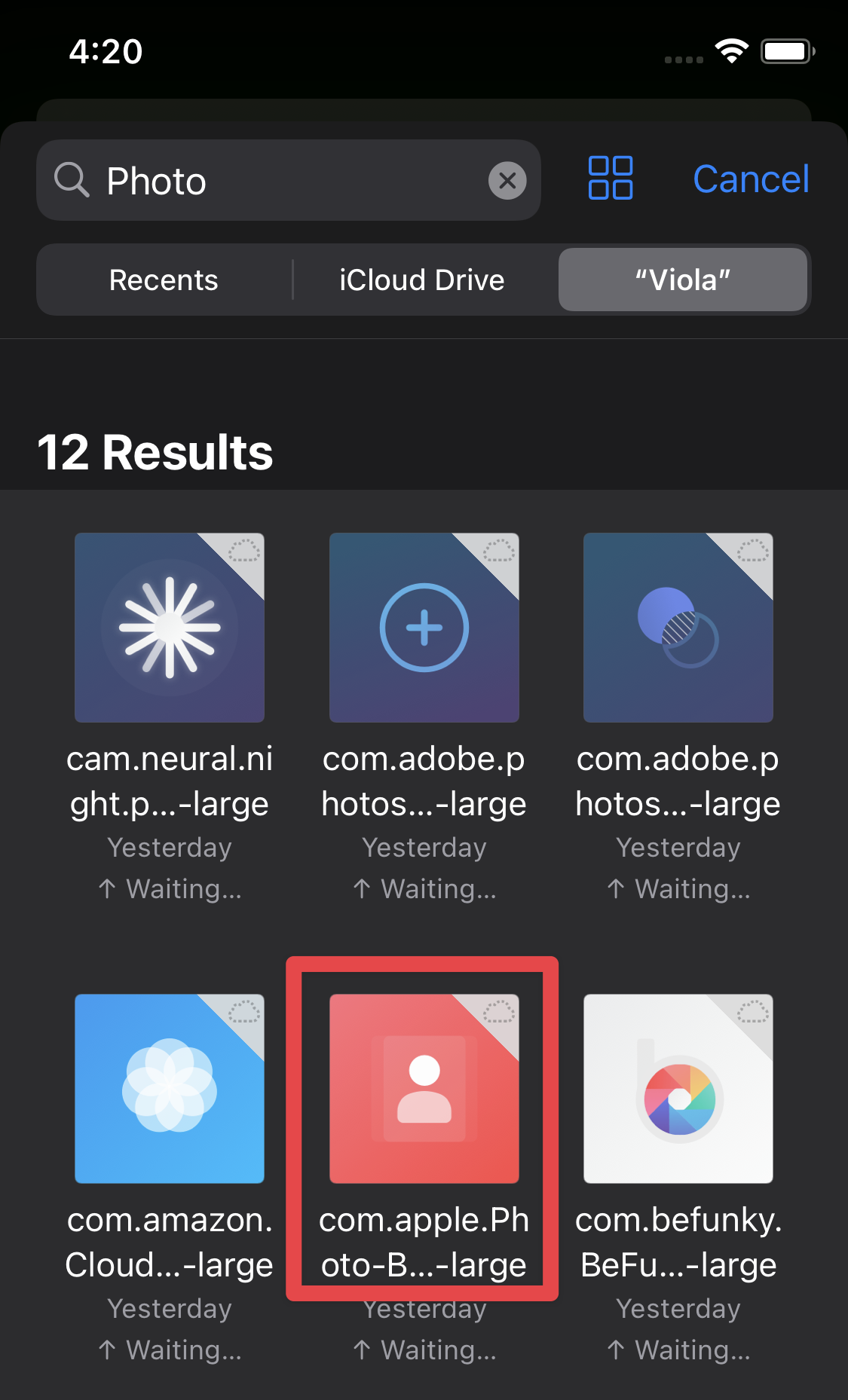
Search for the icon you’d like to use and select it
-
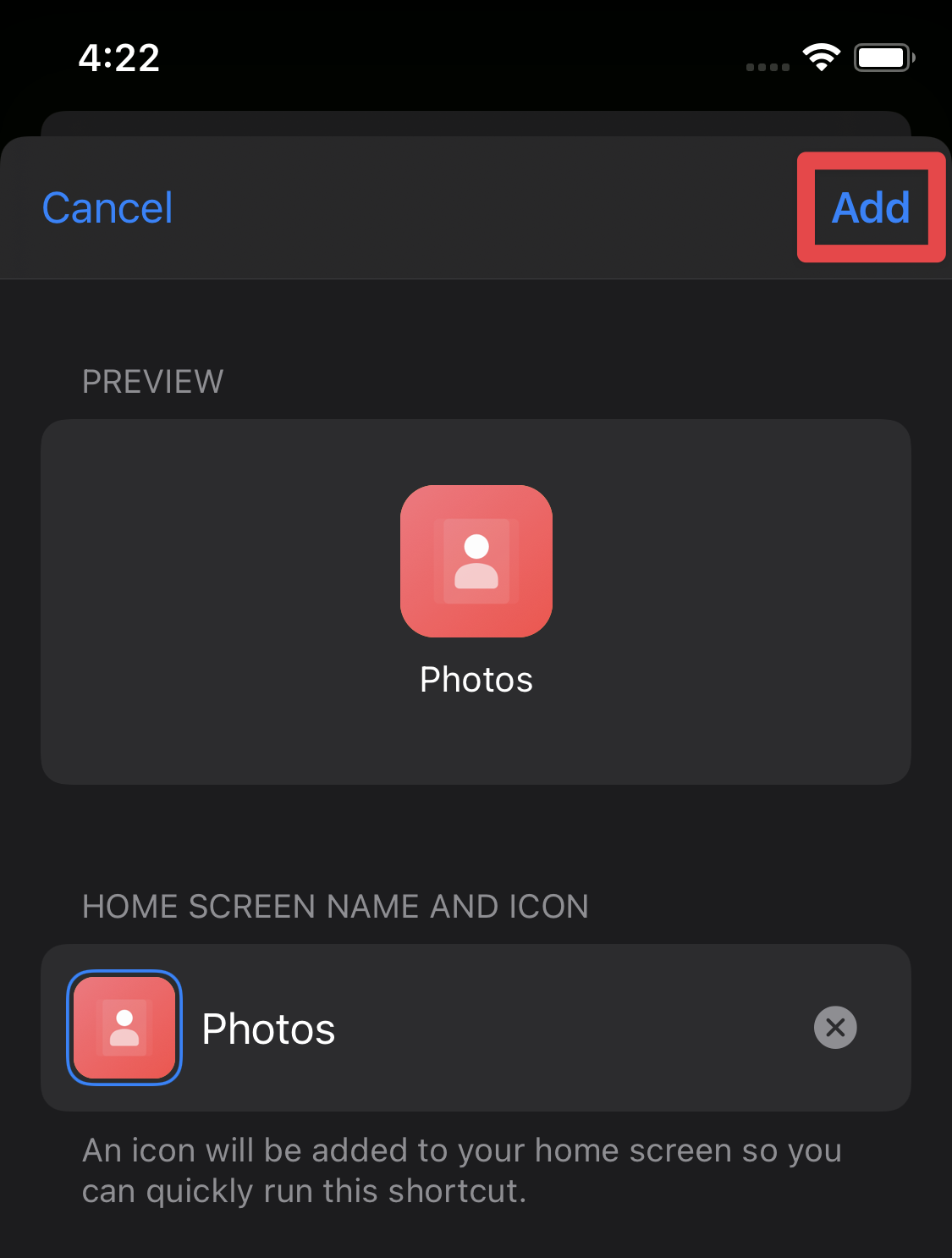
Now click “Add” to add the icon to your home screen
-
Done! You should now see the icon on your home screen. Repeat these steps for as many icons as you’d like to theme